Table of Contents
How to Synchronize Obsidian Vault Using Git (PC + Android)
Obsidian stores all your notes as plain Markdown files inside a local folder called a "vault." Unlike cloud-based note-taking apps such as Notion or Google Keep, Obsidian does not include a built-in sync service. This design choice gives you full ownership and portability of your data, but it also means you need to handle cross-device synchronization yourself. If you use Obsidian on both a computer and an Android phone, you need a reliable way to keep those two vault copies consistent. This is where Git comes in.
Git is a distributed version control system originally built for tracking changes in source code. However, since Obsidian notes are just plain text files written in Markdown, Git is a natural fit. By turning your vault into a Git repository and pushing it to a remote host like GitHub, you gain several concrete advantages:
- Full version history: Every change you make is recorded as a commit. You can browse past versions of any note, compare differences between versions, or revert to an earlier state if you accidentally delete or overwrite something. This is far more powerful than a simple backup because you get granular, per-change tracking.
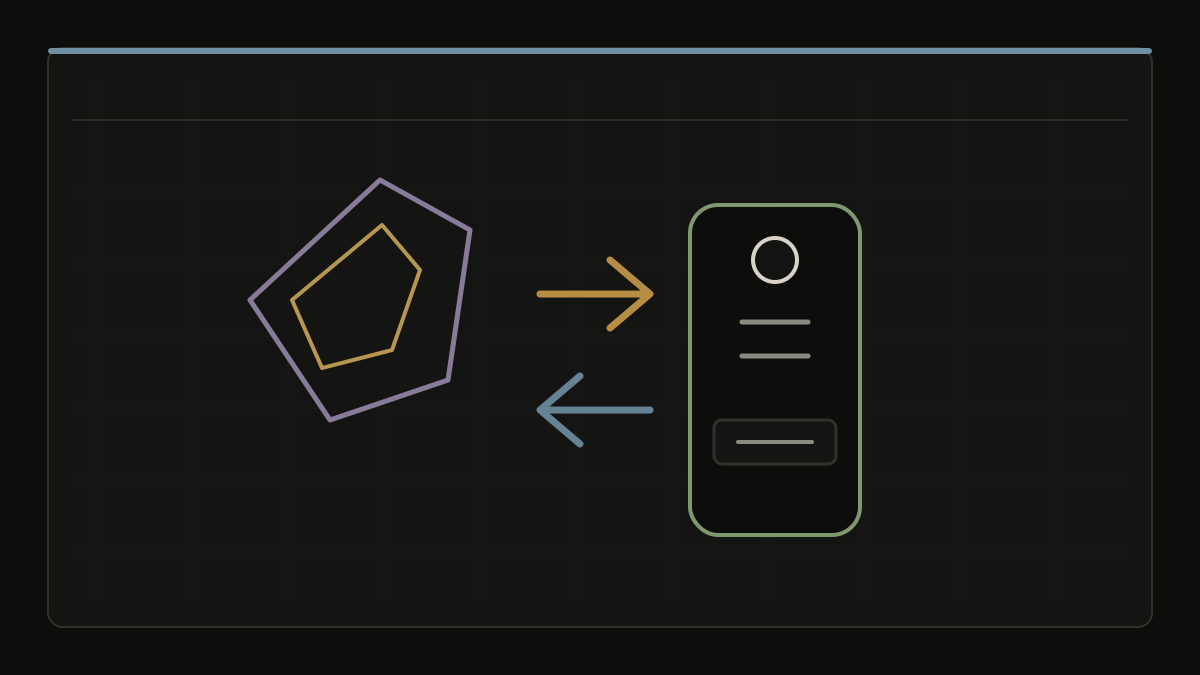
- Two-way synchronization: You can edit notes on your PC, push them to GitHub, then pull them on your phone, and vice versa. Both devices stay up to date with the latest changes. There is no single "source of truth" device; GitHub acts as the central hub.
- No third-party cloud dependency: Your notes live on GitHub inside a private repository that only you can access. Unlike commercial sync services, you are not locked into anyone's ecosystem, and there is no subscription fee for the tier most people need.
- Free and transparent: Git and GitHub's free tier are more than sufficient for personal note synchronization. You can inspect exactly what changed, when it changed, and why, through Git's log and diff tools.
- Conflict visibility: When two devices edit the same note simultaneously, Git does not silently overwrite one version. Instead, it flags the conflict and gives you full control over how to resolve it. You always know exactly what happened.
That said, this approach has trade-offs you should be aware of before committing to it:
- It is not automatic: You must manually run
git pullandgit pushto sync. There is no background daemon watching your files. If you forget to push after editing on your PC, those changes will not appear on your phone until you do. - It requires basic Git familiarity: Concepts like staging, committing, pushing, pulling, and resolving merge conflicts are fundamental to this workflow. If you have never used Git before, there is a learning curve, but this guide covers everything you need.
- Binary files are not ideal in Git: Obsidian notes are plain text, which Git handles brilliantly. However, if you store large numbers of images, PDFs, or audio files in your vault, your repository size will grow quickly. Git is designed for text; for large binary assets, consider using Git LFS or a separate cloud storage solution.
If you prefer a set-and-forget sync that works silently in the background, consider using Obsidian's official Sync service or community plugins like Remotely Save instead. But if you value control, auditability, cost efficiency, and a complete version history, the Git-based workflow is hard to beat.
Important Notes
Read these carefully before proceeding. Understanding these points will save you from common pitfalls later.
This method does not provide automatic synchronization. Every time you finish editing on one device, you must explicitly run
git add,git commit, andgit push. On the other device, you must rungit pullto receive those changes. If you forget to push, your other device will not see your latest notes. If you forget to pull before editing, you risk creating a merge conflict. Developing a habit of syncing at the start and end of each session is critical.This approach requires basic Git knowledge. You do not need to be a Git expert, but you should understand what commit, push, pull, and merge conflict mean. This guide explains each step, but if you run into issues, knowing how to read Git error messages and search for solutions will be valuable.
Avoid editing the same note on two devices without syncing in between. If you edit the same file on your PC and your phone without pushing and pulling between those edits, Git will encounter a merge conflict. Conflicts are not destructive; Git preserves both versions and asks you to choose. However, resolving conflicts takes time and can be confusing if you are not prepared for them.
1. Create a GitHub Account
GitHub will serve as the remote host for your Obsidian vault. It stores a copy of your repository in the cloud, acting as the synchronization point between your PC and your phone. Both devices push and pull from the same GitHub repository, so changes made on either device are reflected on the other.
- Go to github.com and sign up for a free account. The free tier includes unlimited private repositories, which is all you need for personal note synchronization.
- After creating your account, create a new repository. Give it a recognizable name such as
obsidian-vaultormy-notes. - Choose "Private" visibility. Obsidian vaults often contain personal notes, journals, passwords, and other sensitive information. A private repository ensures that only you (and anyone you explicitly grant access to) can read or modify the contents. Do not use a public repository unless you are certain your vault contains nothing private.
- Do not initialize the repository with a README, .gitignore, or license if you are going to push an existing vault. This avoids conflicts between GitHub's initial commit and your local files. You can add these later if needed.
2. Install Git and GitHub CLI on Your Computer
Before you can use Git from the command line, you need to install it on your computer. Additionally, installing the GitHub CLI (gh) simplifies authentication so you do not have to manage SSH keys or personal access tokens for day-to-day operations on your PC.
Installing Git
- Windows: Download the installer from git-scm.com and run it. During installation, you can accept the default options. The installer includes Git Bash, which provides a Unix-style terminal you can use throughout this guide.
- macOS: Git comes pre-installed on most macOS versions. If it is not available, install it via Homebrew with
brew install git, or download the installer from git-scm.com. - Linux: Install Git through your distribution's package manager. For Debian/Ubuntu, run
sudo apt install git. For Fedora, runsudo dnf install git.
After installation, verify it works by running:
You should see output like git version 2.x.x.
Installing GitHub CLI
The GitHub CLI (gh) lets you authenticate with GitHub directly from the terminal without manually creating SSH keys or tokens for every operation.
- Download it from cli.github.com for your operating system.
- On macOS, you can also install it via Homebrew:
brew install gh.
Authenticating with GitHub
Once both tools are installed, authenticate with your GitHub account:
This command will guide you through an interactive setup:
- Choose GitHub.com as the platform.
- Select HTTPS as the preferred protocol (this is the simplest option and works well with the GitHub CLI).
- Choose Login with a web browser when prompted. The CLI will give you a one-time code. Open the URL it displays in your browser, paste the code, and authorize the application.
Once authenticated, the GitHub CLI stores your credentials securely. You can now push to and pull from GitHub repositories without entering your password each time.
3. Convert Your Obsidian Vault into a Git Repository
This step turns your existing Obsidian vault folder into a Git repository on your PC. This means Git will start tracking every file inside the vault, recording each change you make.
Navigate to your vault folder
Open a terminal (or Git Bash on Windows) and navigate to your Obsidian vault directory:
Replace /path/to/your/obsidian-vault with the actual path to your vault. For example:
- Windows:
cd C:\Users\YourName\Documents\MyVault - macOS:
cd ~/Documents/MyVault - Linux:
cd ~/Documents/MyVault
If you are not sure where your vault is located, open Obsidian, go to Settings, and look at the "Vault location" field. It will show you the exact folder path.
Create a .gitignore file
Before initializing Git, it is a good idea to create a .gitignore file. This file tells Git which files or folders to ignore, so they are not tracked or uploaded to GitHub. Obsidian generates some internal files that you typically do not need to sync:
Create this file in the root of your vault directory. The workspace.json files store window layout and open tab state, which differ between your PC and phone. If you track them, they will cause frequent and unnecessary merge conflicts.
Initialize Git
Initialize a Git repository in the vault folder:
This command creates a hidden .git directory inside your vault. This directory stores all of Git's tracking data, including the full history of every change you commit. It does not modify any of your note files.
Stage all files
Add every file in the vault to Git's staging area. The staging area is a holding zone where you prepare changes before committing them:
The dot (.) means "everything in the current directory and all subdirectories." Git will scan your vault, find every file, and mark them for inclusion in the next commit. You can verify what was staged by running git status.
Create your first commit
A commit is a snapshot of your vault at a specific point in time. It records the current state of all staged files and attaches a message describing the change:
This creates your first commit, which represents the initial state of your vault. Think of it as the starting point in your vault's history. From now on, every commit you make will build on top of this one.
Create the repository on GitHub
If you have not already created a repository on GitHub, you can do it from the command line using the GitHub CLI:
This single command does three things at once:
- Creates a private repository named
obsidian-vaulton your GitHub account. - Links your local repository to the remote repository under the name
origin. - Pushes your initial commit to GitHub immediately.
If you already created the repository on GitHub's website, link it manually instead:
git branch -M mainrenames your current branch to "main," which is the modern convention (older Git versions default to "master").git remote add origintells Git where the remote repository lives. Replace the URL with your actual repository URL.
Push to the remote repository
If you used gh repo create with the --push flag, your code is already on GitHub. If not, push manually:
The -u flag sets the remote repository as the "upstream" for your current branch. This is a one-time setup. After this, you can simply run git push and git pull without specifying the remote or branch name each time.
You should now be able to visit your repository on GitHub and see all your vault files in the browser.
4. Android Setup: Install Termux
To use Git on your Android phone, you need a terminal emulator. Termux is the most capable option available. It provides a full Linux environment on Android, complete with a package manager that can install Git and other tools.
Why Termux and not other apps?
There are other terminal apps on Android, but Termux stands out because it includes its own package ecosystem. You can install not just Git, but also tools like ssh, nano, and vim directly through its package manager. It is actively maintained and widely used in the Android development community.
Installation
- Recommended: Download Termux from F-Droid or the GitHub Releases page. These versions are up to date and receive regular updates.
- Not recommended: The Google Play Store version of Termux is outdated and unmaintained. It has known bugs and incompatibilities with newer Android versions. Avoid it if possible.
Initial setup
After installing Termux, open it and run the following command to update all packages to their latest versions:
This ensures you are starting from the most current and stable package versions, which reduces the chance of running into bugs during setup.
5. Grant Termux Storage Access
By default, Termux cannot access your phone's files. You need to grant it storage permission so it can read and write to your device's shared storage, where Obsidian stores its vaults.
When you run this command, Android will display a system prompt asking whether you want to allow Termux access to your photos, media, and files. Tap Allow. If you accidentally deny the permission, you can grant it later by going to your phone's Settings, finding Termux under Apps, and enabling the Storage permission manually.
After granting permission, Termux creates a ~/storage directory containing symlinks to various locations on your phone's file system. The most important one for this guide is ~/storage/shared, which points to your phone's primary shared storage (the same storage you see when you connect your phone to a computer via USB).
6. Navigate to the Obsidian Folder
Now that Termux has storage access, navigate to where your Obsidian vault is (or will be) stored:
This command takes you to the root of your phone's shared internal storage. From there, navigate to the folder where you want your vault to live. If you already have an Obsidian vault on your phone, go to that directory:
If you do not yet have an Obsidian vault on your phone and want to create one from the GitHub repository, you can run the clone command directly in ~/storage/shared. Obsidian detects folders that contain Markdown files and offers to open them as vaults.
To see the contents of the current directory, use:
This helps you confirm you are in the right place before proceeding.
7. Install Git on Termux
Install Git through Termux's package manager:
Termux uses the pkg command as a wrapper around apt, so this works similarly to installing packages on Debian/Ubuntu Linux. The command downloads Git and any dependencies it needs.
After installation finishes, verify that Git is available and working:
You should see output like git version 2.x.x. If you get a "command not found" error, make sure the installation completed without errors and try running pkg update before reinstalling.
8. Configure Git Identity on Termux
Before making any commits on your phone, tell Git who you are. Git attaches your name and email to every commit you make, making it easy to see who changed what. This is especially important when syncing across devices, so you can distinguish edits made on your PC from those made on your phone.
Use the same name and email you configured on your PC so that commits from both devices are attributed to the same person in the Git log.
Configure credential storage
To avoid entering your GitHub credentials on every git push or git pull, configure Git to store them:
This command saves your credentials in a plain text file (~/.git-credentials) inside Termux's private storage. The next time you authenticate, Git will read from this file automatically.
Security note: The store helper saves credentials in plaintext. On a non-rooted phone, this is reasonably secure because Termux's internal storage is isolated from other apps. However, on a rooted device, another app with root access could potentially read this file. If you are concerned about this, you can use the cache helper instead, which stores credentials only in memory for a limited time:
The cache helper keeps credentials in memory for 15 minutes by default. You can extend this duration with git config --global credential.helper "cache --timeout=3600" (1 hour).
9. Create a GitHub Personal Access Token
GitHub no longer accepts account passwords for Git operations over HTTPS. Instead, you must use a Personal Access Token (PAT). This is a long, random string that acts as a password with scoped permissions, meaning you can restrict what the token is allowed to do.
There are two types of tokens on GitHub:
- Classic tokens: Simpler to create, with broad permissions. Good for quick setup but offer less fine-grained control.
- Fine-grained tokens: Newer and more secure. They let you restrict access to specific repositories and specific permissions. This is the recommended type for this guide.
Creating a fine-grained token
- Log in to github.com on your computer.
- Click your profile picture in the top right corner, then click Settings.
- In the left sidebar, scroll down and click Developer settings.
- Click Personal access tokens, then click Fine-grained tokens.
- Click Generate new token.
- Give the token a descriptive name, such as "Obsidian Vault - Android." This helps you remember what the token is for if you need to manage it later.
- Set an expiration date. GitHub will revoke the token after this date. You can choose 30 days, 60 days, 90 days, or a custom date. For personal use, 90 days is a reasonable balance between convenience and security. You will need to generate a new token when this one expires.
- Under Repository access, select Only select repositories, then choose your Obsidian vault repository. This ensures the token can only access that one repository and nothing else on your account, which significantly reduces the impact if the token is ever compromised.
- Under Permissions, expand Repository permissions and set Contents to Read and Write. This is the minimum permission needed to push and pull changes from your repository.
- Click Generate token at the bottom of the page.
- Copy the token immediately and store it somewhere secure (such as a password manager). GitHub only displays the token once. After you leave the page, there is no way to see it again. If you lose it, you must generate a new one.
10. Clone the Repository on Your Phone
Now that Git is installed, configured, and you have a personal access token, clone your Obsidian vault repository from GitHub to your phone. Navigate to the folder where you want the vault to be stored (see step 6), then run:
Replace username and obsidian-vault with your actual GitHub username and repository name.
When prompted for credentials:
- Username: Enter your GitHub username.
- Password: Paste your Personal Access Token. Do not enter your GitHub account password; it will not work. GitHub has disabled password authentication for Git operations.
If you make a mistake entering the token, Git will reject the authentication. You can retry the clone command. If you previously configured credential.helper store, your credentials will be saved after the first successful authentication, so you will not need to enter them again.
After the clone completes, a new folder matching the repository name will appear in your current directory. Verify the contents:
You should see all your Obsidian notes and folders.
Opening the vault in Obsidian
- Open the Obsidian app on your phone.
- Tap Open folder as vault.
- Navigate to the folder where you cloned the repository and select it.
- Obsidian will detect the Markdown files and configure the vault automatically.
11. Using Synchronization
With both your PC and phone connected to the same GitHub repository, you can now synchronize changes between them. The key principle is simple: always pull before you start editing, and always push after you finish editing. Following this habit prevents the vast majority of merge conflicts.
Synchronizing from PC to phone
On your PC, after making changes to your notes:
Let's break down each command:
git add .: Stages all modified and new files. This tells Git which changes you want to include in the next commit. The dot means "all changes in the current directory and subdirectories." If you only want to include specific files, you can list them individually, for example:git add "Daily Notes/2025-01-15.md".git commit -m "...": Creates a commit with a descriptive message. The-mflag lets you write the message inline. Good commit messages are short but specific. "update notes" is vague; "add meeting notes for Tuesday" is much more useful when scanning the history later.git push: Uploads your commits to GitHub. Your changes are now visible to any other device that pulls from the same repository.
On your phone, open Termux, navigate to the repo folder, and pull the changes:
git pull downloads all new commits from GitHub and merges them into your local copy. After this command finishes, the files on your phone match the files on your PC.
Synchronizing from phone to PC
The process works identically in reverse. After editing notes on your phone:
Then on your PC:
12. Making Changes on Your Phone and Pushing Them
Since synchronization is bidirectional, you can make full edits on your phone and push them back to GitHub. This is useful for adding quick notes, editing existing ones, or reviewing your notes on the go.
Navigate to the repo folder
Open Termux and navigate to the cloned repository:
If you close Termux and reopen it later, you will likely need to navigate to this folder again. You can create a shell alias to make this faster:
After this, simply typing vault will take you directly to the repository folder.
Stage your changes
After making edits in Obsidian, return to Termux and stage the changes:
You can check what changed before committing by running:
This shows you which files are modified, which are new, and which are staged. You can also see a diff of the changes:
This displays the exact lines that were added or removed, which is helpful for reviewing your edits before committing.
Create a commit
Record the changes with a descriptive commit message:
Or, if you want to write a longer, more detailed message, omit the -m flag:
This opens your default text editor (usually nano in Termux) where you can write a multi-line commit message. The first line is the subject, followed by a blank line, then the body with more details.
Push to remote
Send the commit to GitHub:
The golden rule: pull before you push
Before pushing, especially if it has been a while since your last sync, it is good practice to pull first:
Or more simply, just pull before making any new edits. This ensures your local copy is up to date with GitHub and reduces the chance of merge conflicts. Think of it as refreshing your working copy before you start making changes.
13. Handling Merge Conflicts
Despite your best efforts, merge conflicts will occasionally happen. A conflict occurs when you edit the same file on both devices without syncing in between. Git cannot automatically merge these changes because it does not know which version you want to keep.
What a conflict looks like
When you run git pull and a conflict is detected, Git will output a message like:
If you open the conflicting file, you will see conflict markers:
The text between <<<<<<< HEAD and ======= is your local version. The text between ======= and >>>>>>> origin/main is the version from GitHub.
How to resolve a conflict
- Open the conflicting file in any text editor (or in Obsidian itself).
- Decide which version you want to keep. You can keep one side, the other, or combine both.
- Remove the conflict markers (
<<<<<<<,=======,>>>>>>>) and edit the content to your liking. - Save the file.
- Stage and commit the resolution:
On the other device, simply run git pull to receive the resolved version.
Tips to minimize conflicts
- Pull before you edit: Always run
git pullbefore opening Obsidian on either device. This ensures you are working on the latest version. - Push after you edit: Always run
git pushafter finishing a writing session. This keeps GitHub up to date. - Use smaller, more frequent commits: Instead of one massive commit at the end of the day, commit after each meaningful change. This makes conflicts smaller and easier to resolve.
- Avoid editing the same note simultaneously on both devices: If you know you edited something on your PC that you also need on your phone, push those changes before switching devices.
14. Automating Sync with Shell Aliases (Optional)
To reduce the number of commands you type each time, you can create shell aliases that combine common Git operations into single commands. Add these to your ~/.bashrc file on Termux (or your .bashrc / .zshrc on your PC):
After running source ~/.bashrc, you can simply type gsync to stage, commit, and push in one step, or gpull to pull the latest changes. The $(date +%Y-%m-%d\ %H:%M) part automatically inserts the current date and time into the commit message, so you always know when each sync happened.
15. Automating Sync with Termux Tasks
Shell aliases are convenient, but you can take automation further by creating dedicated sync scripts and leveraging Termux's task ecosystem. This section covers scripts, home screen shortcuts, boot-time sync, and scheduled auto-sync.
Create a sync script
Instead of typing multiple Git commands every time, create a single script that handles the full sync workflow. Create a directory for your scripts:
Then create a script called obsidian-sync:
This script does three things in order:
- Pulls the latest changes from GitHub with rebase to keep your history linear.
- Checks whether you have local changes. If there are none, it skips the commit and push steps entirely.
- Commits and pushes only if there are local changes to sync.
A log file (~/sync-log.txt) records every sync attempt with timestamps, so you can review what happened if something goes wrong. You can run the script with:
Create separate pull and push scripts
Sometimes you only want to pull or push without the full sync cycle. Create two more scripts for those cases:
Now you can type obsidian-pull to fetch changes or obsidian-push to send your edits.
Add scripts to PATH
To run these scripts from anywhere without typing the full path, add ~/bin to your PATH:
Home screen shortcuts with Termux:Widget
Termux:Widget is a companion app that lets you create home screen shortcuts for Termux scripts. This means you can sync your vault with a single tap, without even opening Termux.
- Install Termux:Widget from F-Droid or the GitHub Releases page. Make sure it matches the same source you installed Termux from (F-Droid or GitHub).
- Create the widget scripts directory:
- Create a widget script for syncing:
- Add the widget to your home screen:
- Long-press an empty area on your Android home screen.
- Tap Widgets.
- Find Termux:Widget and drag it to your home screen.
- Select Obsidian Sync from the list.
Now you can sync your Obsidian vault with a single tap from your home screen.
Auto-sync on boot with Termux:Boot
Termux:Boot is another companion app that runs scripts automatically when your phone starts up. You can use it to pull the latest changes every time your phone reboots, ensuring you always start with up-to-date notes.
- Install Termux:Boot from F-Droid or the GitHub Releases page.
- Create the boot scripts directory:
- Create a boot script that pulls your vault on startup:
The sleep 30 delay gives your phone time to establish a network connection before the script attempts to reach GitHub. If your phone connects to Wi-Fi slowly, increase this value.
- Open the Termux:Boot app once to register it. You will see a Toast notification confirming it is active. After this, the script will run automatically every time your phone restarts.
Scheduled auto-sync with cron
For truly automatic synchronization at regular intervals, you can set up a cron job inside Termux. This pulls (and optionally pushes) your vault on a schedule, even if you forget to do it manually.
- Install the cron daemon:
- Start the cron daemon:
- Edit the crontab to define your schedule:
- Add a line to sync every 30 minutes while your phone is awake:
- Save and exit. If you are using the default
nanoeditor, pressCtrl+O,Enter, thenCtrl+X.
To make cron start automatically when Termux opens, add it to your ~/.bashrc:
Note: Cron in Termux only runs while Termux is active in the foreground or has a persistent notification. Android aggressively kills background processes to save battery. To keep Termux running, swipe down from the notification area and look for the Termux persistent notification. If you do not see it, open Termux, run termux-wake-lock, and then enable the persistent notification in Termux's notification settings. This prevents Android from suspending Termux and stopping your scheduled syncs.
Summary of automation options
| Method | Effort | Best for |
|---|---|---|
Shell aliases (gsync, gpull) |
Low | Quick manual sync from the terminal |
Sync scripts (obsidian-sync) |
Low | Reliable one-command sync with logging |
| Termux:Widget | Medium | Tapping a home screen shortcut to sync |
| Termux:Boot | Medium | Auto-pulling changes on phone restart |
| Cron job | Medium | Periodic automatic sync in the background |
You can combine these approaches. For example, use Termux:Boot to pull on restart, a cron job for periodic background syncs, and Termux:Widget for on-demand pushes when you finish editing.
16. Adding Obsidian-Specific Files to .gitignore (Recommended)
Obsidian generates several internal files that change frequently and are specific to each device. Tracking them in Git causes unnecessary noise and frequent conflicts. Consider adding the following to your .gitignore:
The workspace.json files in particular cause constant merge conflicts because they record which tabs and panes you have open. Since these differ between your PC and phone, it is better to exclude them. Obsidian recreates these files automatically if they are missing.
After updating your .gitignore, remove any previously tracked files that should now be ignored:
Conclusion
With this setup, you have a robust, version-controlled synchronization system for your Obsidian notes:
- Full version history: Every change is recorded as a commit. You can revert to any previous version, compare differences, and see exactly what changed and when. This is far more powerful than a simple backup.
- Bidirectional sync: Both your PC and phone can push and pull changes. You can start a note on your computer, continue it on your phone, and finish it back on your computer.
- Complete audit trail: The Git log provides a detailed timeline of every modification, including who made the change and the commit message explaining why.
- Data resilience: Your notes exist in three places: your PC, your phone, and GitHub. If any one device fails, the other two still have a complete copy. Losing all three simultaneously would require a very specific disaster.
- Cost efficiency: Git and GitHub's free tier handle personal note synchronization without any subscription fees.
Remember to develop a consistent sync habit: pull before you edit, push after you edit. And if you want to reduce the manual effort, set up the Termux task automation described in section 15 — scripts, widgets, boot hooks, and cron jobs can handle most of the repetitive work for you. This simple routine prevents most conflicts and keeps your vault consistent across all devices.