Table of Contents
Coolify Notifications to Gotify with n8n
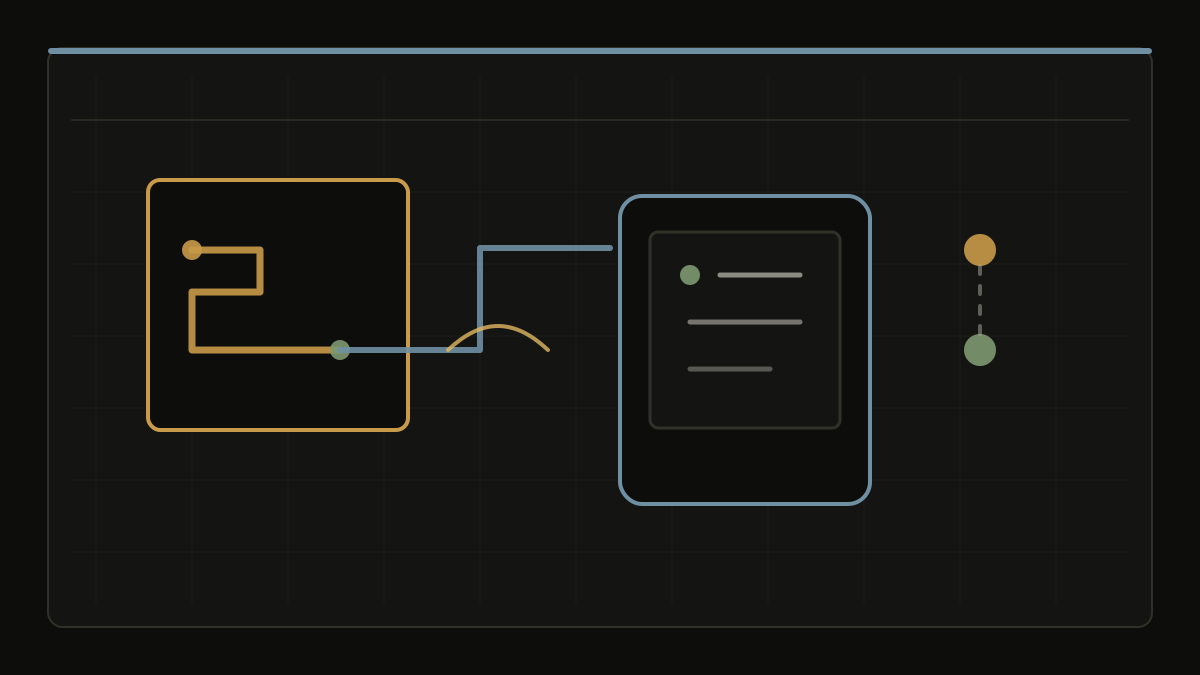
This guide configures Coolify to send deployment, backup, scheduled-task, server, and container events to the Gotify Android app through an importable n8n workflow. Coolify sends webhook notifications to n8n, n8n formats the payload, and Gotify delivers the result as a real-time Android notification.
It uses the released workflow JSON from sametcn99/n8n-automations, not a locally built or hand-edited workflow.
The workflow supports every event in Coolify's
Webhook Payloads
reference: application deployments and unexpected stops, database backups,
scheduled tasks, Docker cleanup, server health and patch alerts, Traefik update
alerts, container status changes, and test notifications. Failures and alerts
use Gotify priority 8, warnings use 6, and successful events use 3.
Architecture and Scope
The event path is:
In Gotify terminology, n8n is an application that can send messages. The phone is a separate client that receives them. The Gotify application token configures the sending side; it does not by itself connect a phone.
Coolify delivers webhook notifications as JSON POST requests. Every official
payload contains success, event, and message; additional fields describe
the associated application, database, task, server, or container. The workflow
turns those fields into concise messages and does not forward raw JSON payloads
to Gotify.
Prerequisites
Before starting, make sure you have:
- A Coolify instance where you can configure notification channels and events.
- A public URL for an n8n instance that Coolify can reach. HTTPS is strongly recommended.
- An n8n instance where you can import and activate workflows and create Gotify credentials. n8n Cloud and Community Edition are both suitable.
- A running Gotify server, a user account, and permission to create an application token.
- An Android phone with the official Gotify app installed from Google Play, F-Droid, or the latest GitHub release.
Do not put Gotify tokens, webhook URLs, or production workflow exports in a public repository.
Step 1 - Download the Released Workflow JSON
Open the latest GitHub release
and download the coolify-gotify.json asset. The repository rebuilds this JSON
from its TypeScript source during release publication, so the release asset is
the supported import artifact.
You can also use this download URL:
Release assets intentionally contain this placeholder instead of a real secret:
Each installation must replace it with its own random value before importing the workflow.
Step 2 - Generate a Webhook URL Secret
This workflow protects its endpoint with an unguessable path. Generate a unique 64-character lowercase hexadecimal value, which provides 256 bits of random entropy.
Windows PowerShell
macOS or Linux
Python 3
On Windows systems where python3 is unavailable, use python instead.
Replace every occurrence of <long-random-secret> in the downloaded
coolify-gotify.json file with the generated value. The final n8n webhook path
must look like this:
The path is effectively a password. Never send it in chat, screenshots, logs, or source control. Use a distinct value for each environment and rotate it immediately if it is exposed.
Step 3 - Create a Gotify Application and n8n Credential
- Sign in to the Gotify server.
- Create an application, for example Coolify Notifications.
- Copy the application's generated token.
- In n8n, create a Gotify credential.
- Enter the Gotify server URL, without
/message, and the application token in that credential.
Use the application token, not a Gotify client or user token. Keep it in n8n's credential store; do not add it to the workflow JSON, the Code node, or notification content. A dedicated Gotify application makes token rotation and message management easier.
Step 4 - Connect the Gotify Android App
The official Gotify Android app maintains a connection to the Gotify server and displays a device notification whenever the server receives a message. Connect it before testing the Coolify workflow:
- Open the Gotify app on the Android phone.
- Add the public HTTPS URL of the Gotify server.
- Sign in with the Gotify user account that owns the Coolify Notifications application created in Step 3.
- Allow Android notification permission when prompted.
- Send a test message from the Gotify server's web interface and confirm that it appears immediately as an Android notification.
The phone needs network access to the Gotify server. For reliable background delivery, exclude Gotify from the device's battery optimization. Some Android vendors terminate background connections aggressively; see DontKillMyApp for device-specific guidance.
Step 5 - Import and Activate the n8n Workflow
- In n8n, create a new workflow or open the import screen.
- Import the edited
coolify-gotify.jsonfile from Step 2. - Open the Send to Gotify node and select the Gotify credential created in Step 3.
- Open Coolify Webhook Input and verify its path contains the new
64-character secret rather than
<long-random-secret>. - Save the workflow.
- Activate the workflow.
- Open Coolify Webhook Input and copy its Production URL.
Use the production URL in Coolify. The n8n test URL only works while n8n is listening for a manual test request and is not a durable webhook endpoint.
If n8n is behind a reverse proxy, configure its public webhook base URL before copying the production URL. A typical configuration is:
The final URL must be reachable from the Coolify instance and pass through the proxy without rewriting its path.
Step 6 - Configure Coolify Webhook Notifications
- In Coolify, open Notifications > Webhook.
- Paste the n8n production URL from Step 5 into Webhook URL.
- Save the notification channel and enable it.
- Enable these notification events for the webhook channel:
- Deployment Success and Deployment Failure
- Container Status Changes
- Backup Success and Backup Failure
- Scheduled Task Success and Scheduled Task Failure
- Docker Cleanup Success and Docker Cleanup Failure
- Server Disk Usage, Server Reachable, and Server Unreachable
- Server Patching and Traefik Proxy Outdated
- Save the notification event selection.
Coolify sends JSON POST requests to this endpoint. Different channels can
have different event selections, so confirm the webhook channel itself has each
event enabled rather than relying on another notification channel's settings.
Step 7 - Verify the End-to-End Delivery
First, use Send Test Notification in Coolify's Webhook notification settings. It should produce a Gotify message titled Coolify Webhook Test.
Then confirm real events:
- Trigger a small application deployment.
- Confirm n8n records a successful execution.
- Confirm the Gotify Android app displays an immediate notification with the application name, project, environment, deployment link, and application URL where those fields are available.
- Review a controlled failure, backup, scheduled task, or server event as appropriate for the environment and confirm it reaches Gotify with the expected priority.
Successful notifications use priority 3. Failed deployments, failed backups,
failed tasks, server availability alerts, disk alerts, patch errors, Traefik
alerts, and stopped containers use priority 8. A successful local backup with
an S3 upload warning uses priority 6.
Security and Operations
- Keep HTTPS enabled between Coolify and n8n when the endpoint crosses a network boundary.
- Treat the 64-character webhook path as an authentication secret. It is not included in Gotify messages.
- Limit access to the n8n workflow, workflow execution history, and Gotify application.
- Coolify webhook payloads can contain application, database, task, server, container, error, output, and URL information. Configure n8n execution-data retention according to your privacy and compliance requirements.
- Rotate the random webhook path if it may have leaked: generate a new value, update the n8n Webhook node, save and activate the workflow, then immediately update Coolify's Webhook URL.
- When updating the automation, download and review a new release asset, make the same secret replacement, import it into a non-production workflow first, then switch production after successful delivery tests.
Troubleshooting
| Symptom | Likely cause | Resolution |
|---|---|---|
Coolify test request receives 404 |
The configured URL differs from the active n8n production URL. | Copy the Production URL again from Coolify Webhook Input. Do not use the n8n test URL. |
| No n8n execution appears | The workflow is inactive or Coolify cannot reach the endpoint. | Confirm the workflow is active, the URL is reachable from the Coolify instance, and proxy or firewall rules permit the request. |
| A request reaches n8n unexpectedly | The random URL path was disclosed. | Rotate the path in n8n and update Coolify's Webhook URL immediately. |
| Gotify receives no message | The Gotify server URL, application token, or selected credential is wrong. | Test the Gotify credential in n8n and verify the token belongs to the intended application. |
| The Gotify server receives a message but the phone stays silent | The Android app is disconnected, notifications are blocked, or battery optimization stopped its background connection. | Open the app, verify it is connected to the right server, allow notifications, and exempt it from battery optimization. |
| Only some Coolify events arrive | The event is not enabled for the Webhook notification channel. | Review the event selection in Notifications > Webhook, save it, and trigger the event again. |
| The copied URL is internal or invalid | n8n's public webhook URL is not configured behind the proxy. | Set the correct public WEBHOOK_URL, restart n8n if required, reactivate the workflow, and copy the Production URL again. |
What You Get
Once active, the workflow turns Coolify webhook deliveries into concise Gotify messages. The Gotify Android app receives each new message in real time and raises the device notification. Each message identifies the event and affected resource, adds its relevant context, includes Coolify or application links when available, and keeps large error or task-output values short enough for a phone notification.